
Help & Support
Get started with IncomeSync and find answers to common questions.
🚀 Getting Started
How do I get started with IncomeSync?
- Download and install the app from the download page (it's on the Microsoft Store).
- Open IncomeSync and start setting up. The free version needs no account or card. For Plus, sign in with Google or your email.
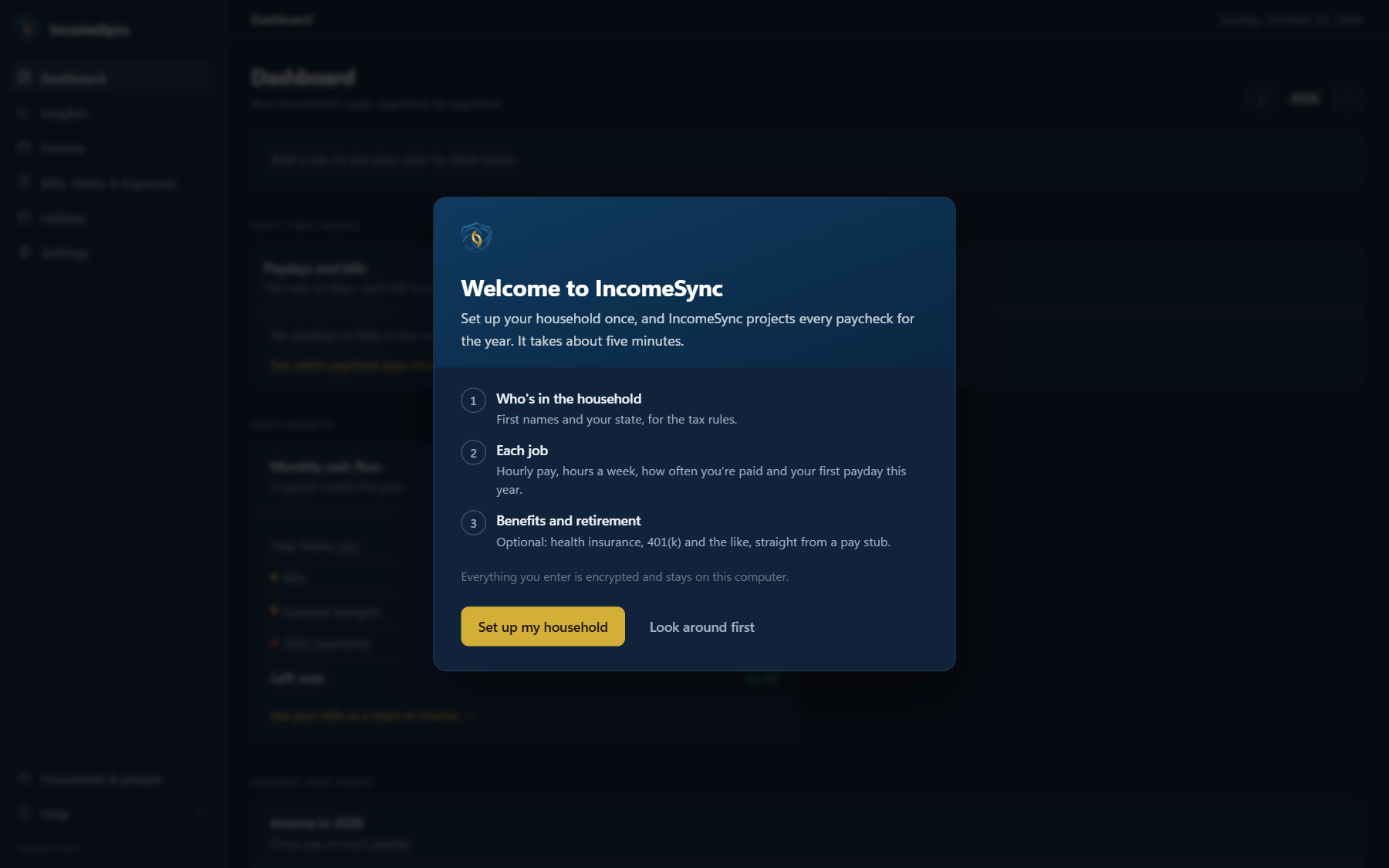
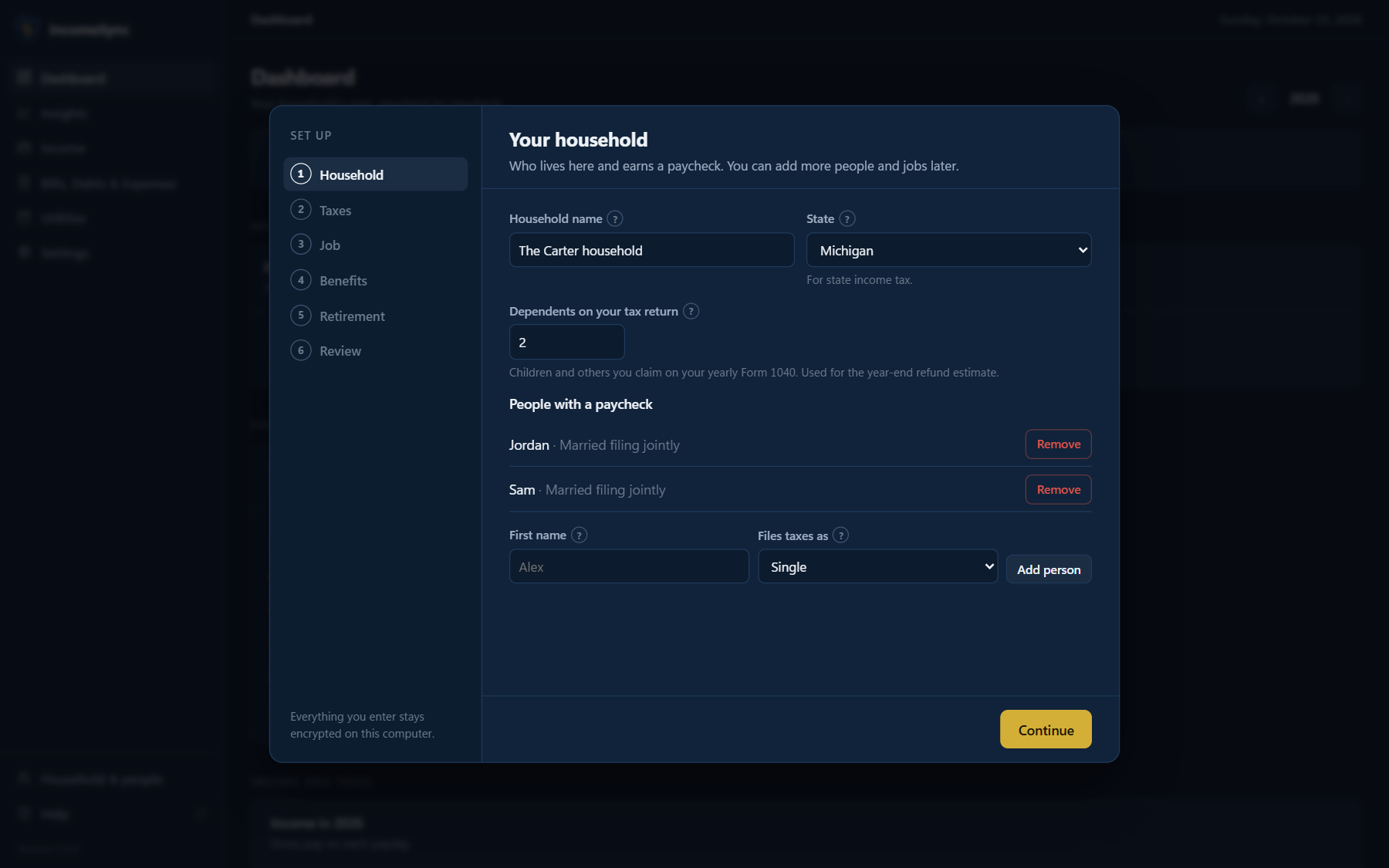
- Follow the setup wizard to add your household, the people in it, and their jobs.
How do I add my household members?
Add each person in the setup wizard, or later in Settings → Profiles → Create Personal Profile. Everyone in the household is managed in the app on your computer, so other members don't need their own login.
How do I add my first paycheck?
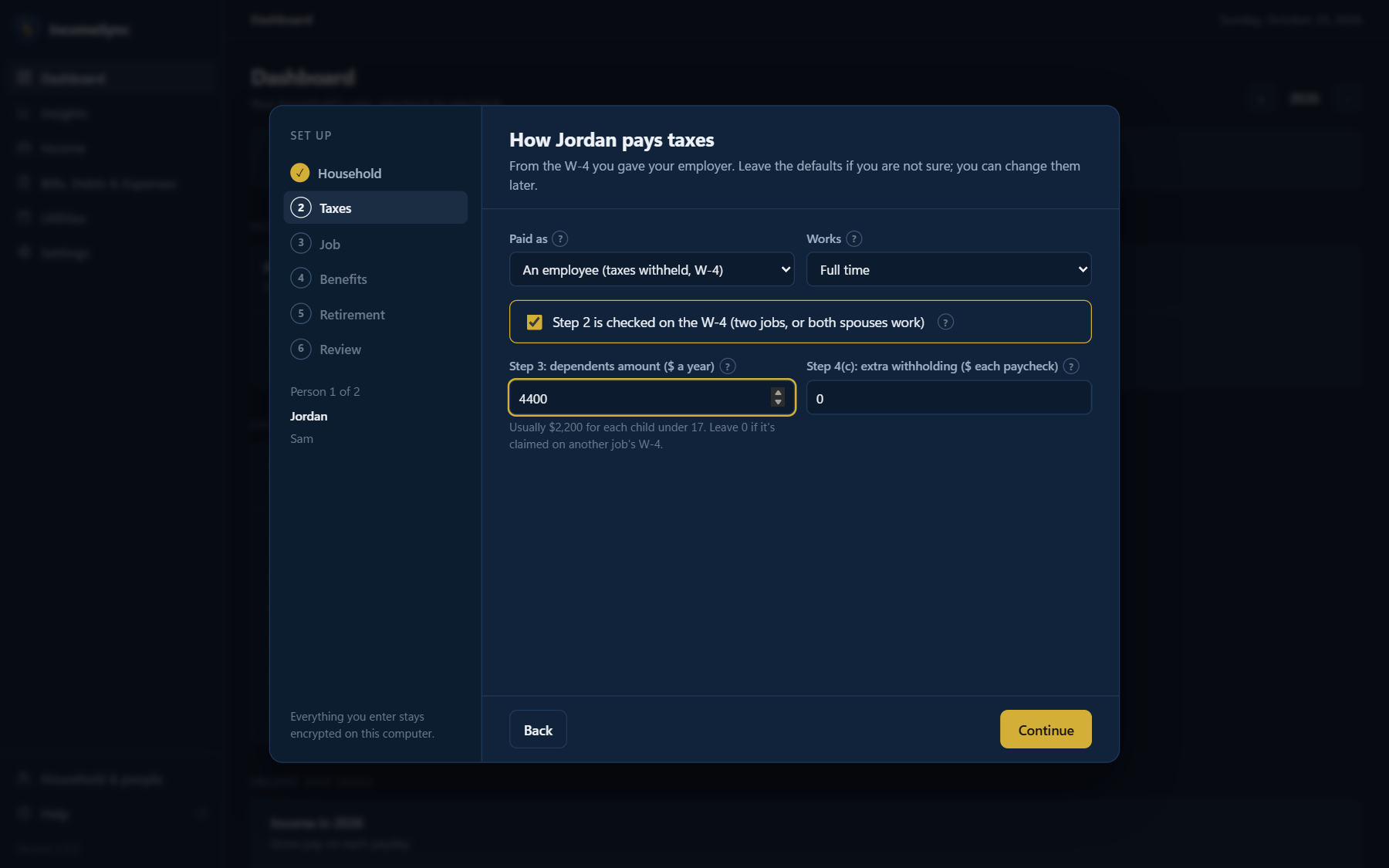
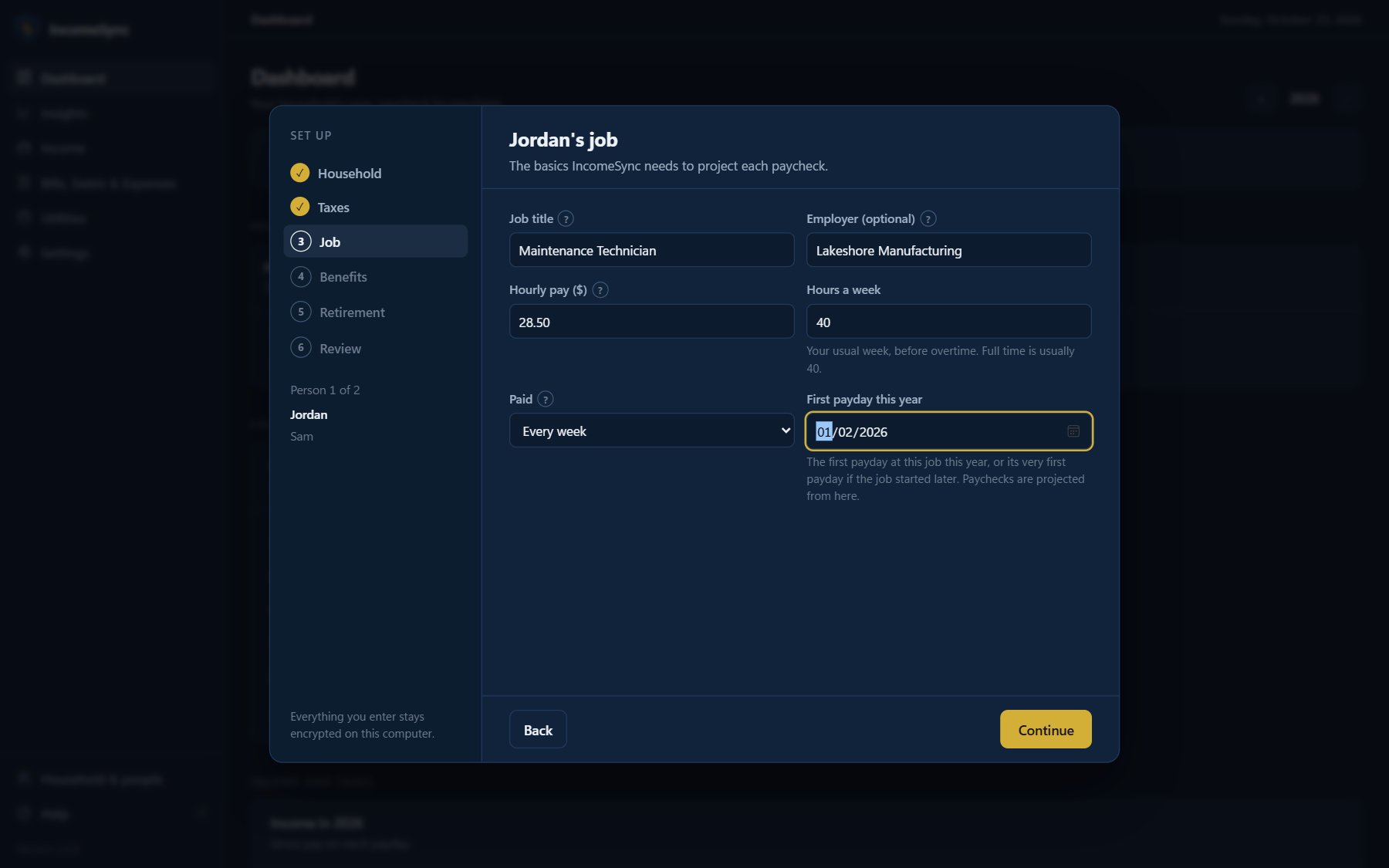
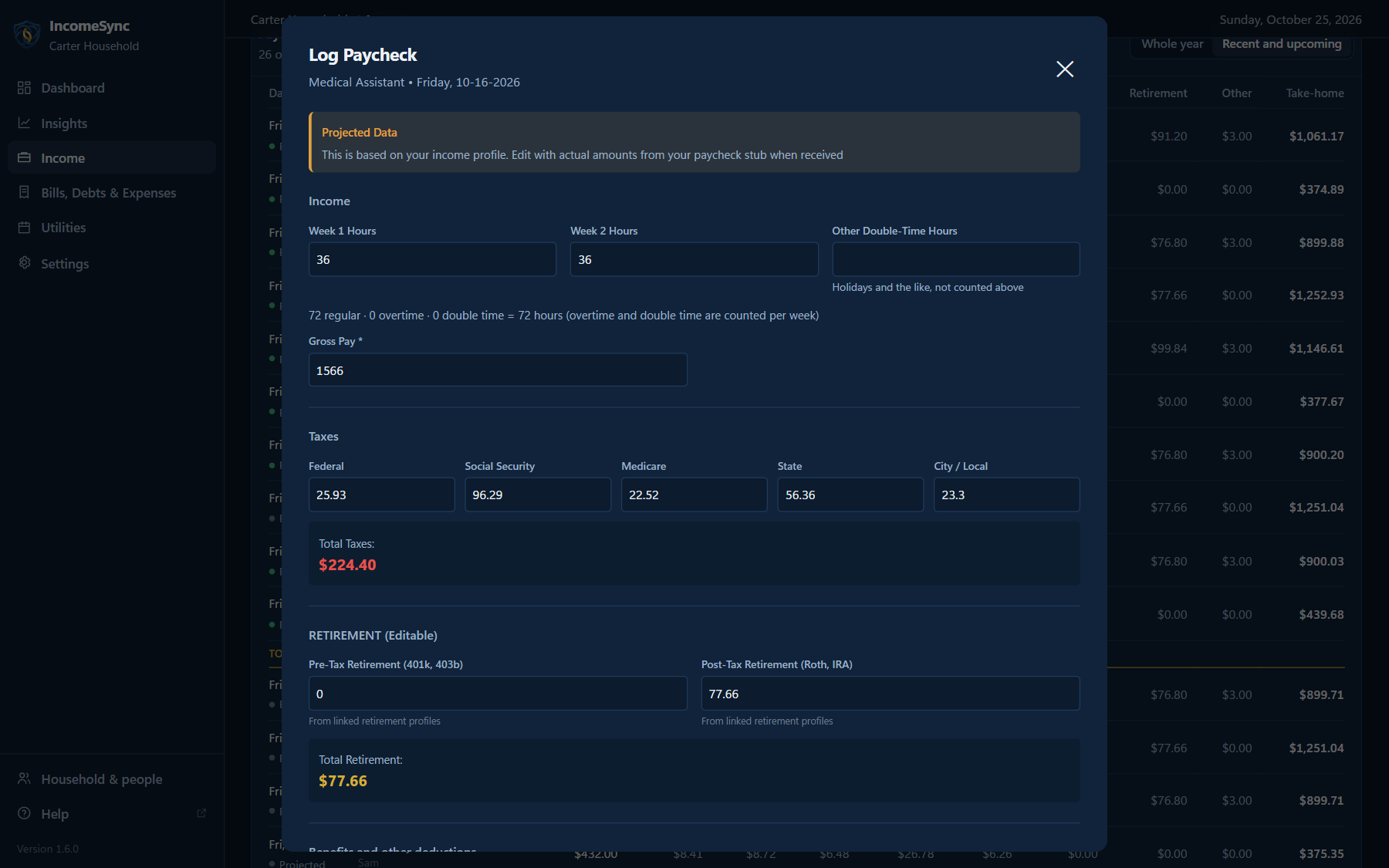
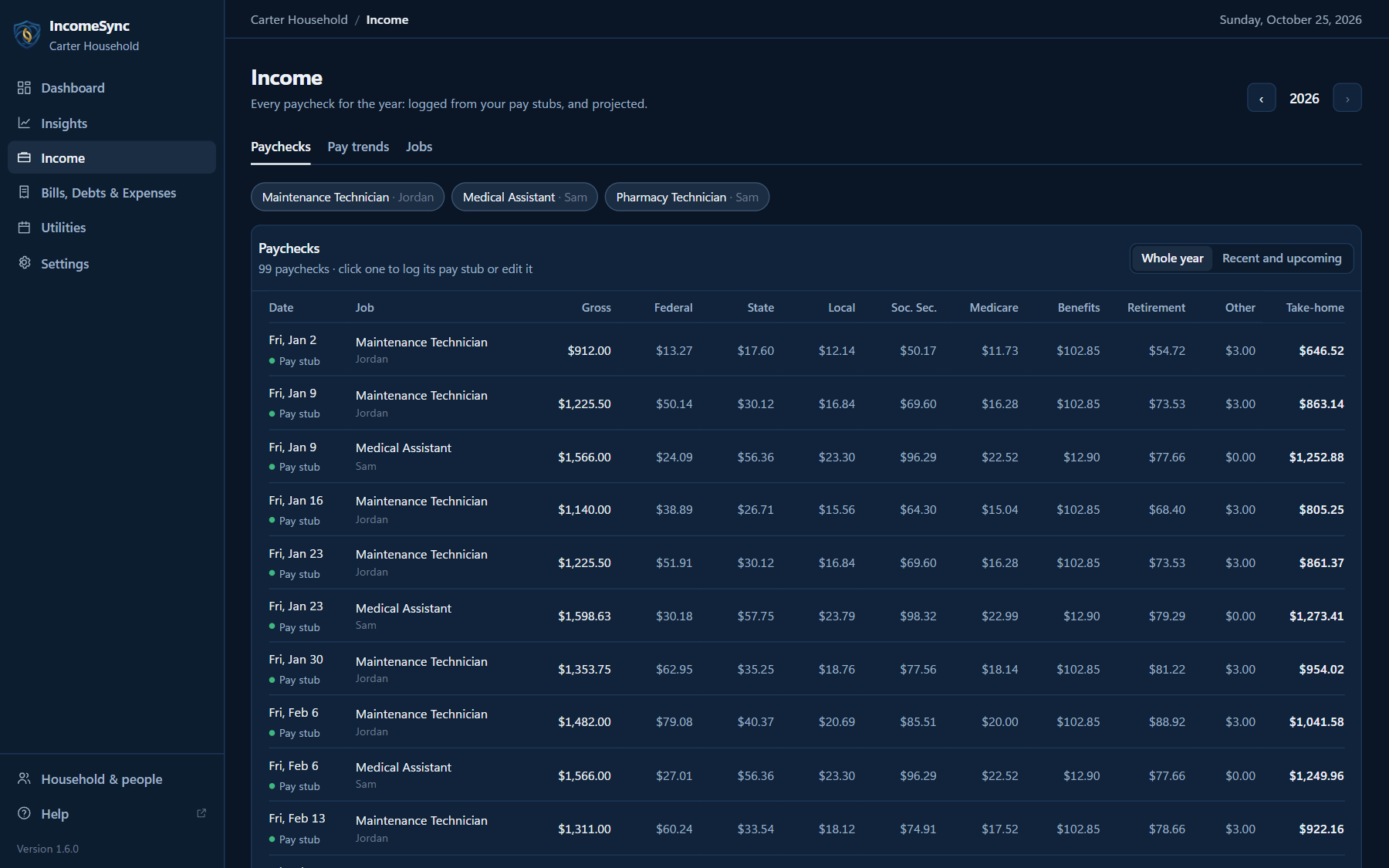
When you add a job (an income source) with its pay rate, pay schedule and first paycheck date, IncomeSync fills in projected paychecks for the rest of the year. When a real paycheck arrives, find it in the paycheck ledger on the Income tab, choose Edit, and enter the amounts from your pay stub.
💰 Paycheck Tracking
What's the difference between projected paychecks and pay stubs?
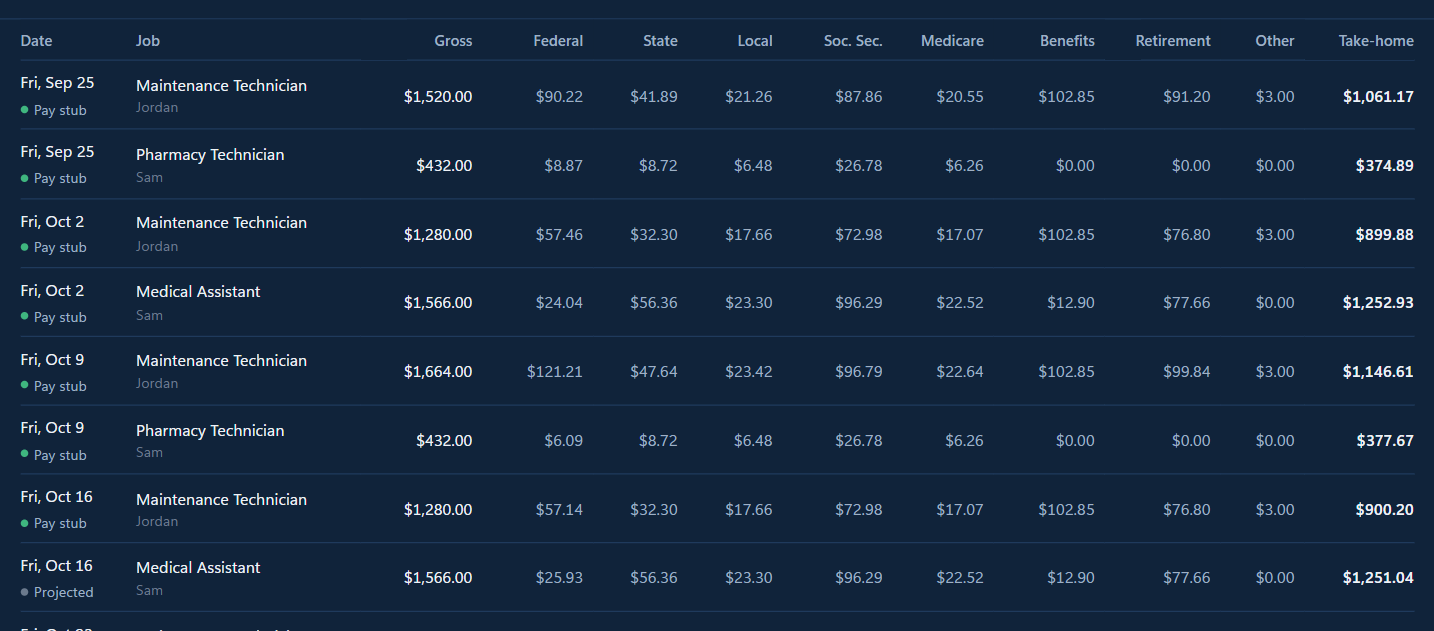
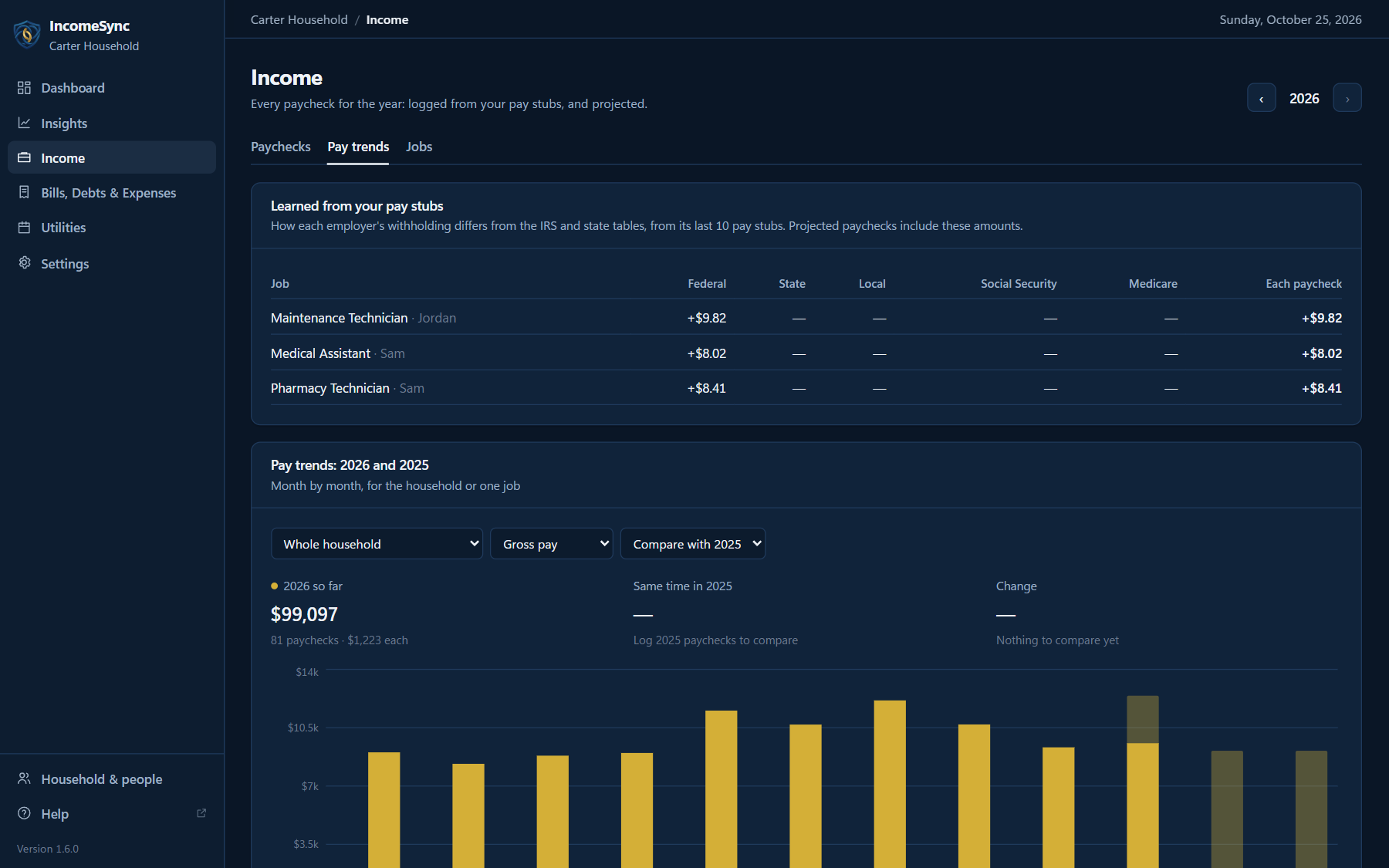
Projected paychecks are estimates for upcoming paydays, based on each job's pay rate and tax settings. Paychecks marked Pay stub are ones you've logged with the amounts from your pay stub. IncomeSync uses them to make future estimates more accurate.
How accurate are the tax calculations?
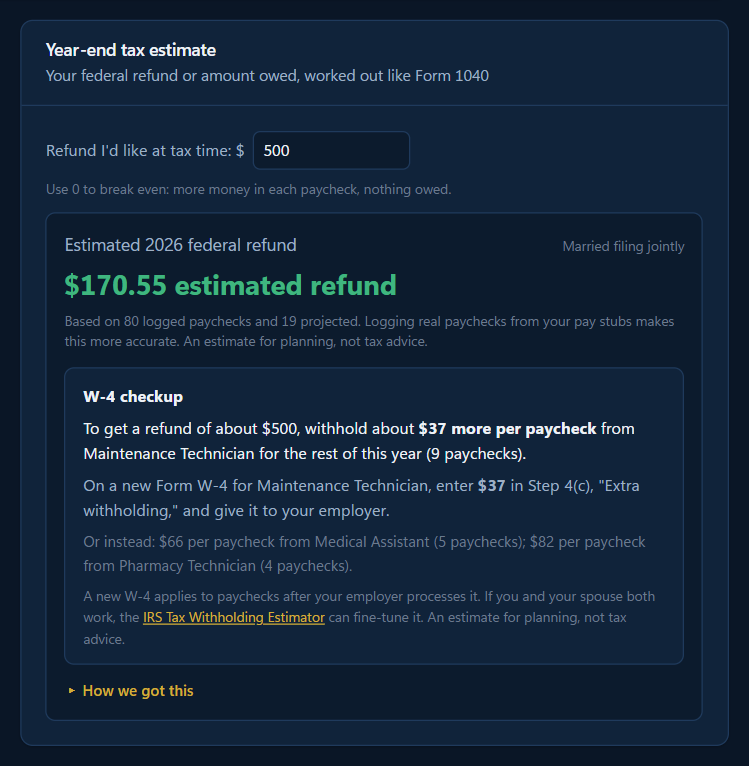
Projected paychecks work out federal withholding the way employers do, from the IRS 2026 tables and the answers on your W-4 (enter them in your tax profile), plus state income tax for all 50 states and D.C., local tax, Social Security and Medicare. Each time you confirm a paycheck from your pay stub, IncomeSync compares your 10 most recent stubs with its own estimate and adjusts future projections to match how your employer actually withholds. One unusual paycheck doesn't throw it off. Results are estimates for planning, not tax advice; check important decisions with a tax professional.
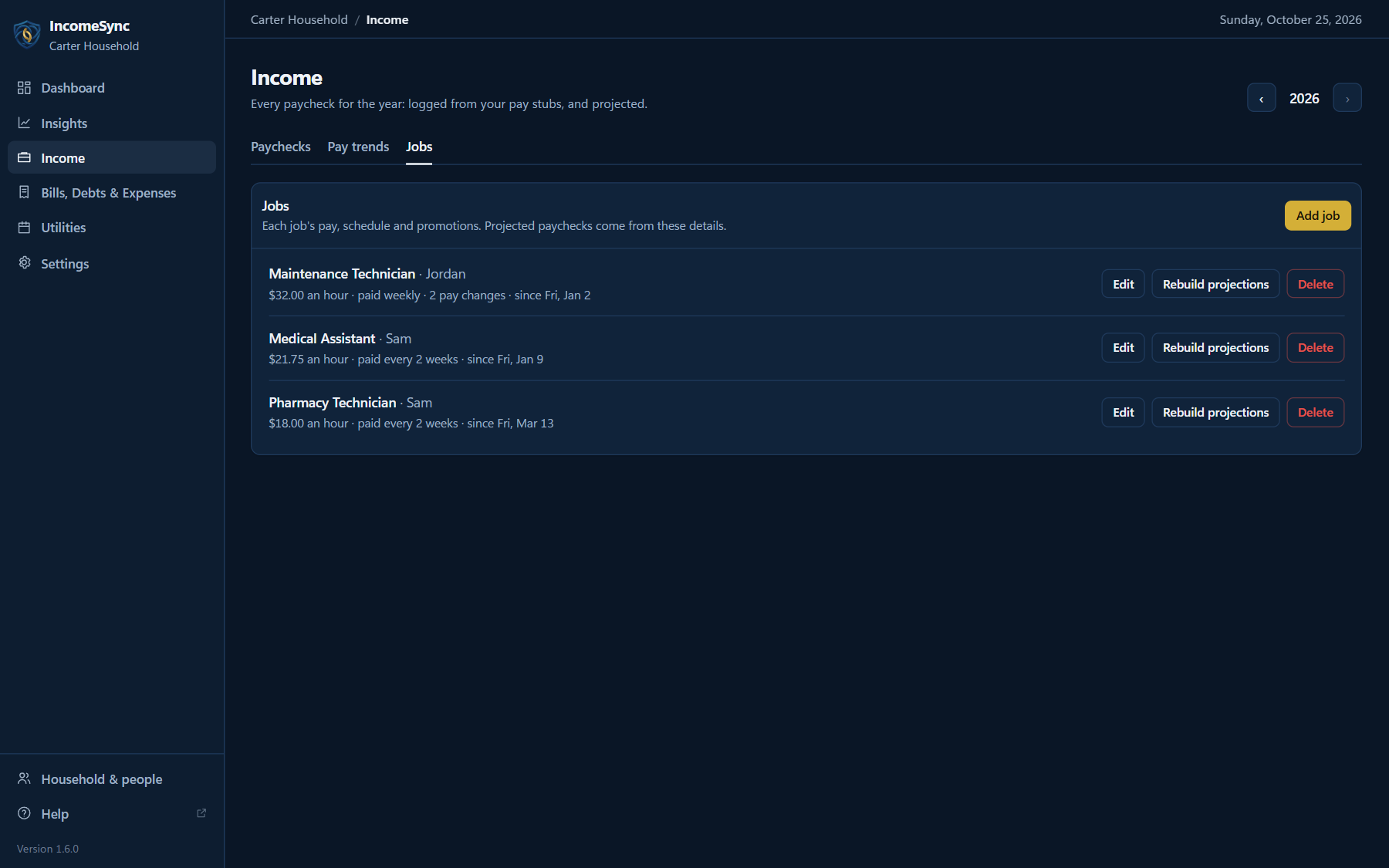
Can I track multiple jobs or income sources?
Yes. Add as many income sources as you need. IncomeSync tracks each one separately and combines them for household totals, so it works for second jobs, side work and freelance income.
How does overtime work?
For weekly paychecks, overtime is calculated automatically when hours go over your overtime threshold (40 by default). For bi-weekly and monthly paychecks, you can turn overtime on when entering hours. You can set your own overtime multiplier (1.5× by default).
📋 Benefits & Retirement
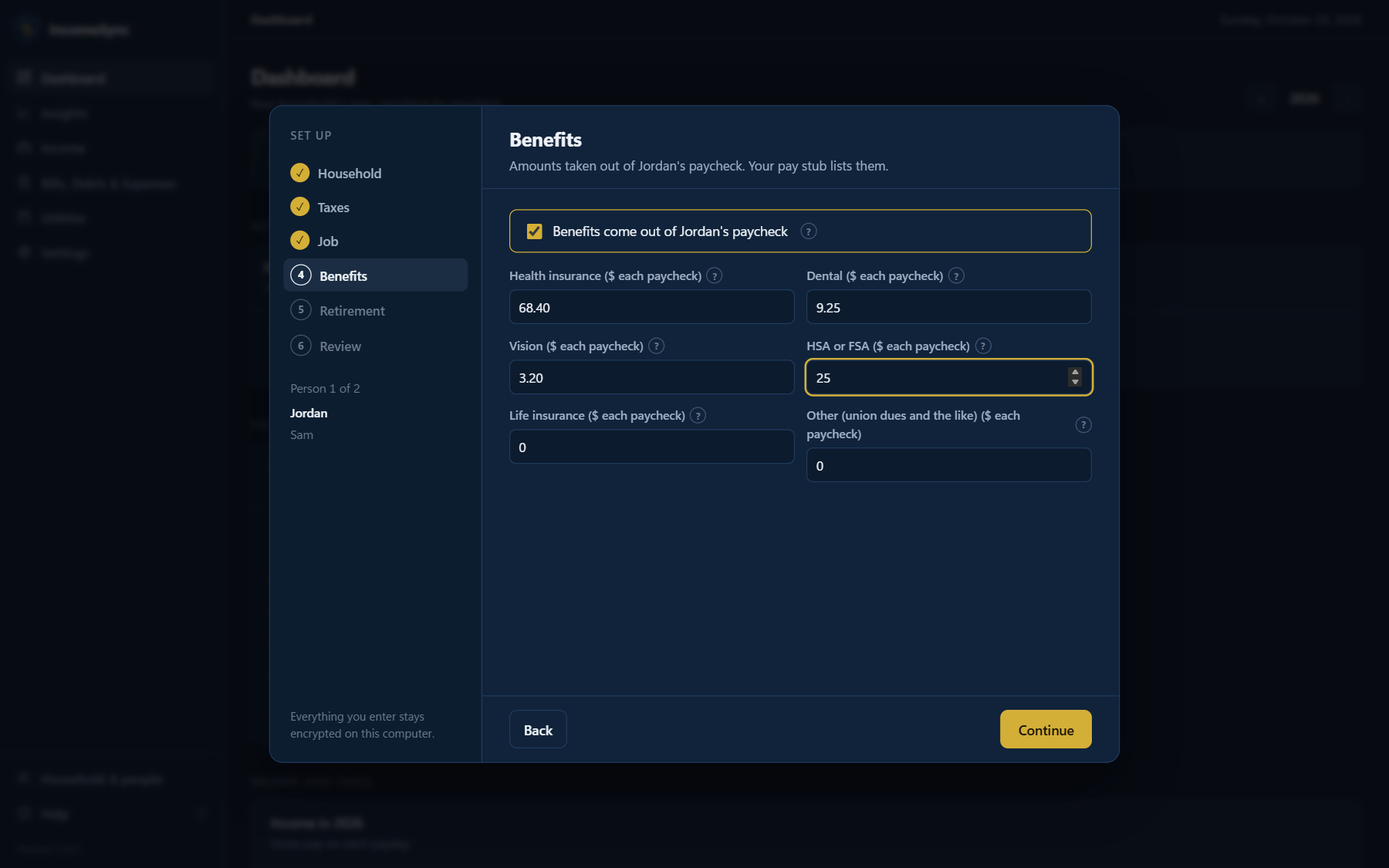
How do I track health insurance and other benefits?
Enter each person's benefits in the setup wizard, or later in Settings → Profiles → Paycheck Deductions:
- Health, dental and vision insurance
- FSA or HSA contributions
- Life insurance
- Dependent care
Pre-tax benefits are taken out before taxes in every paycheck estimate. If your benefits start after a waiting period (for example 90 days after you're hired), set Benefits Activation in the benefits profile, either as a waiting period from your hire date or as the date of the first paycheck they come out of, and earlier paychecks leave them out.
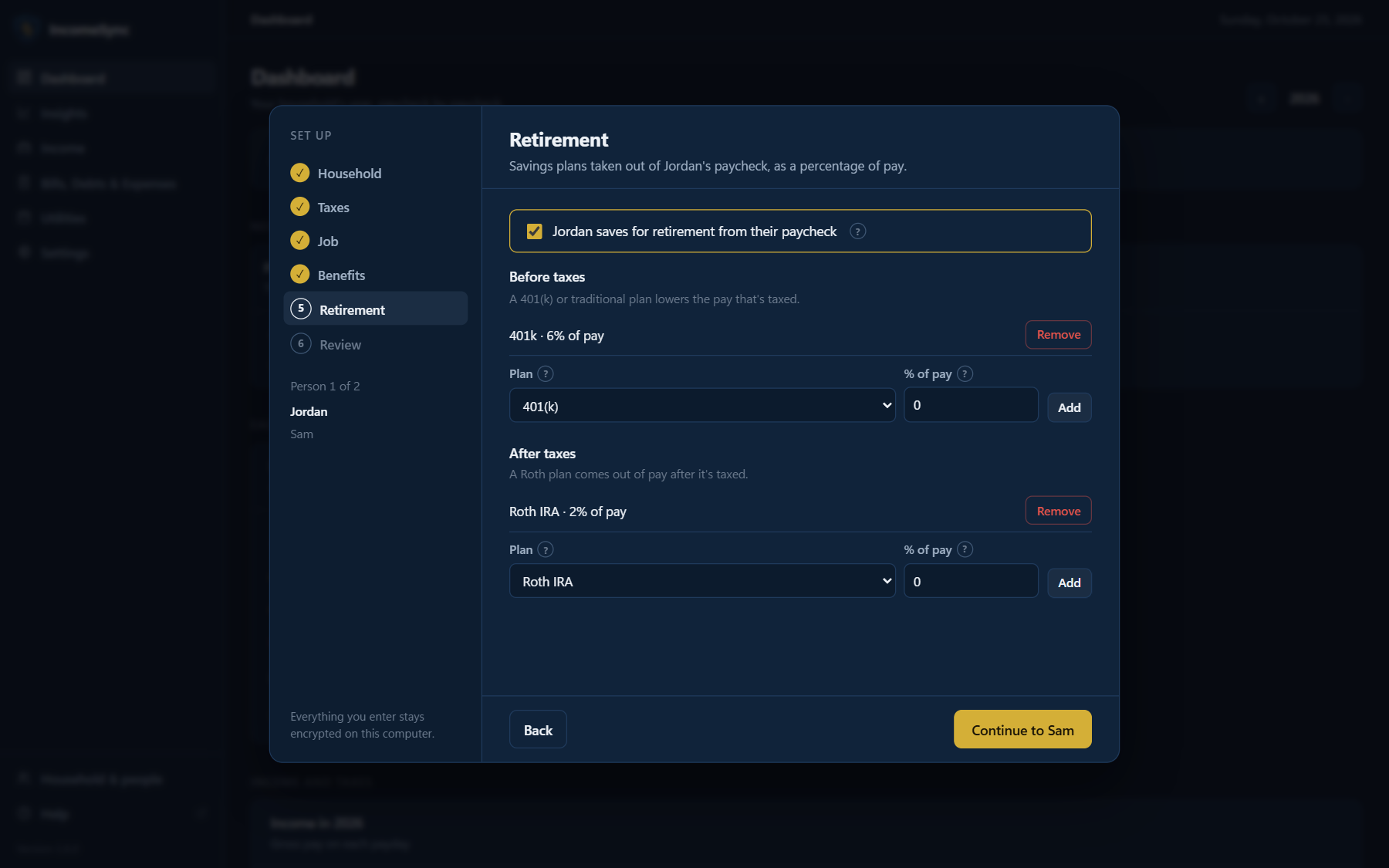
How do I add retirement contributions (401(k), IRA, Roth)?
Add each plan in the setup wizard, or later in Settings → Profiles → Paycheck Deductions, as a percentage of pay or a dollar amount. Pre-tax plans such as a 401(k) lower the taxable pay in each estimate. Employers differ in what a percentage is taken from: choose gross pay or pay after pre-tax deductions in the plan to match your pay stub. Plans can also have their own start date. The retirement section of the Dashboard shows each account's year-to-date contributions and lets you update balances. For 2026, the 401(k) employee limit is $24,500, plus catch-up contributions if you're 50 or older.
💳 Bills & Obligations
How do I track monthly bills and debt?
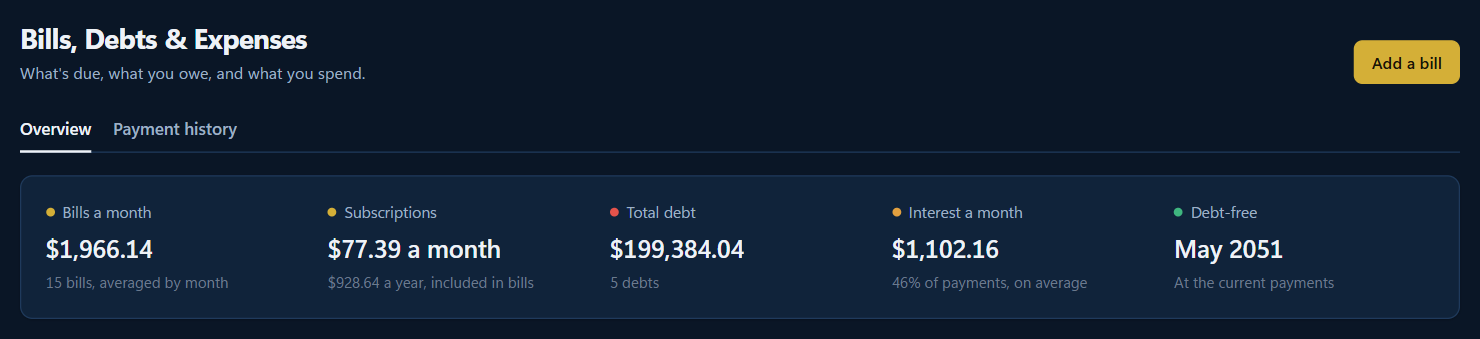
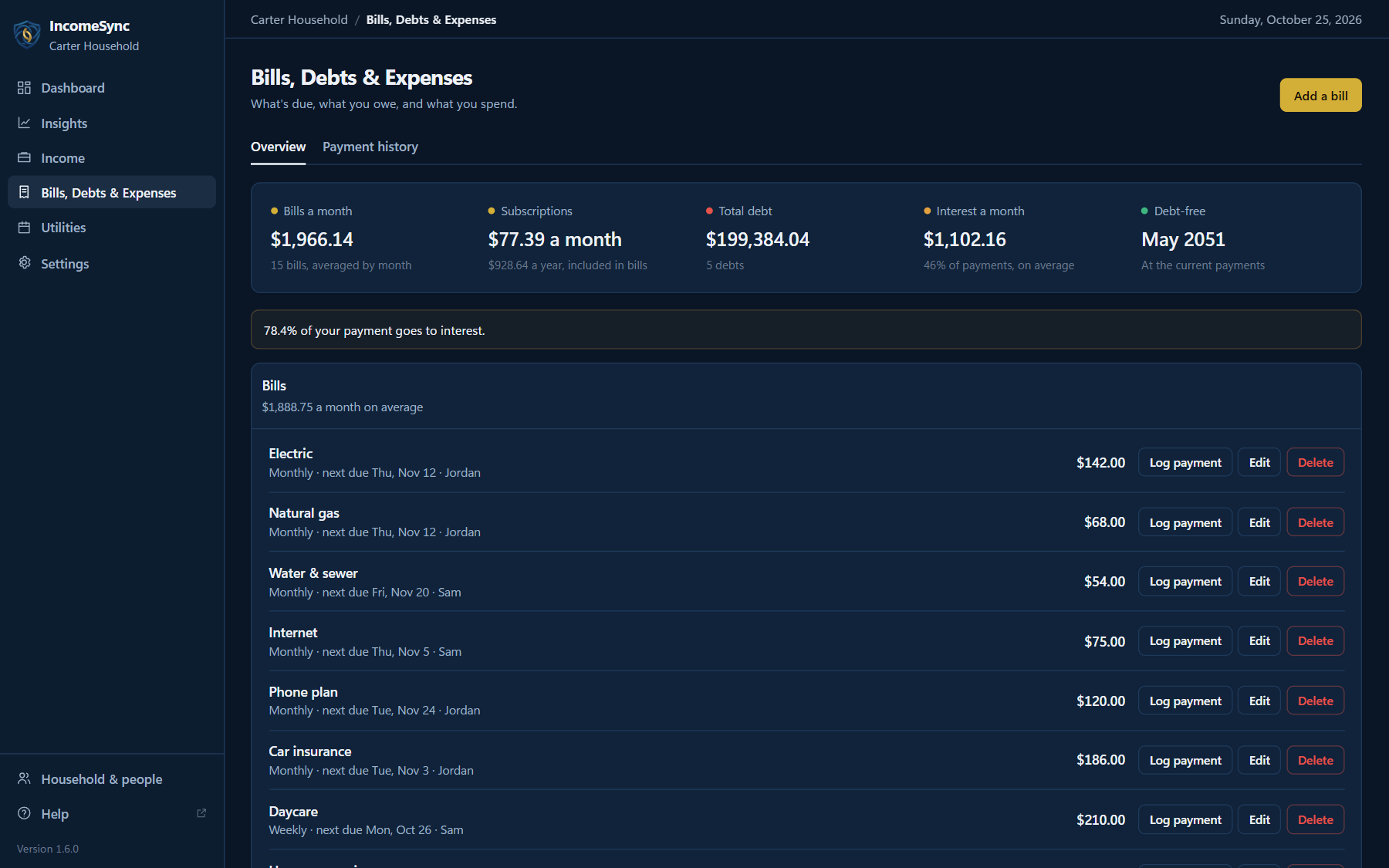
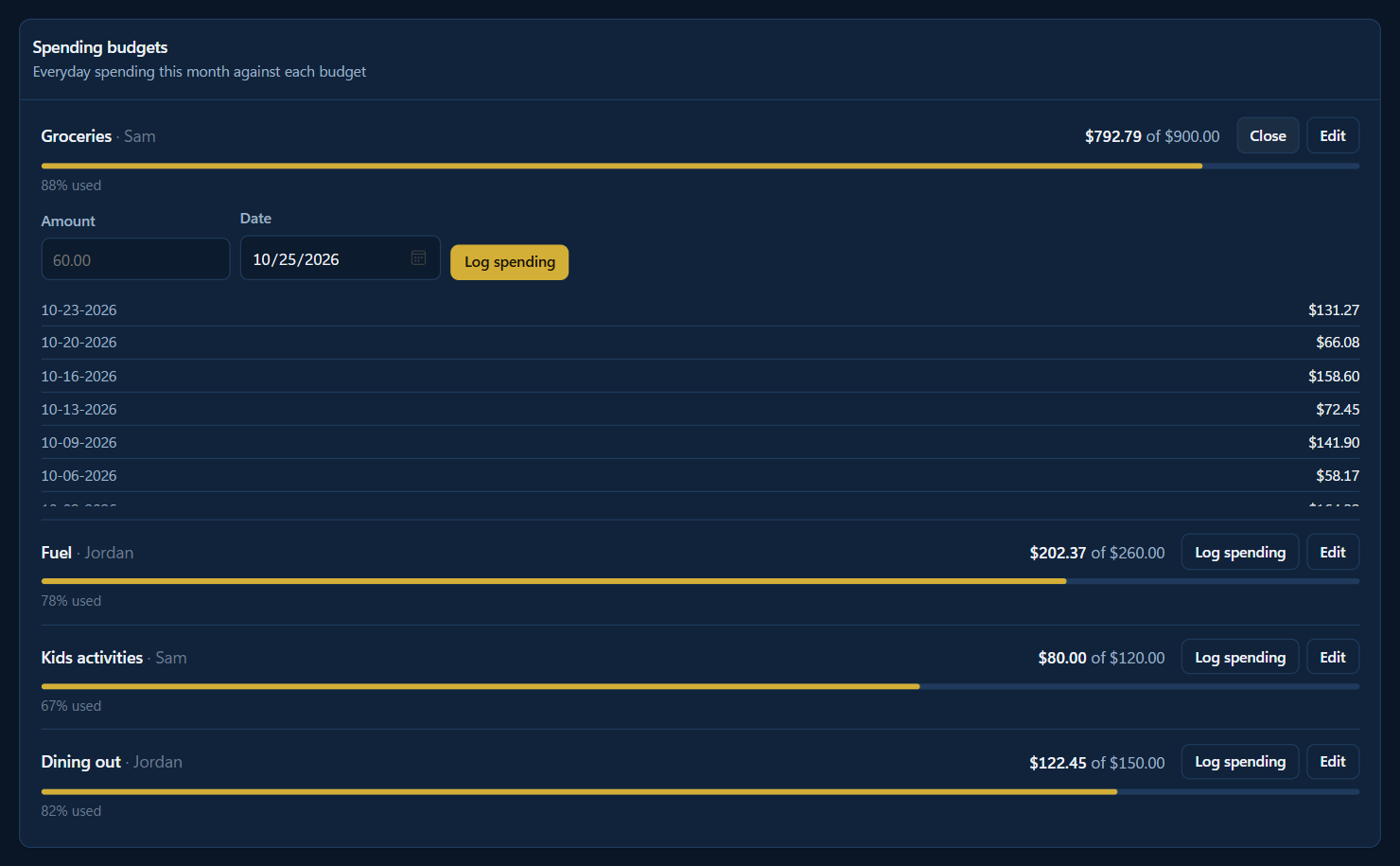
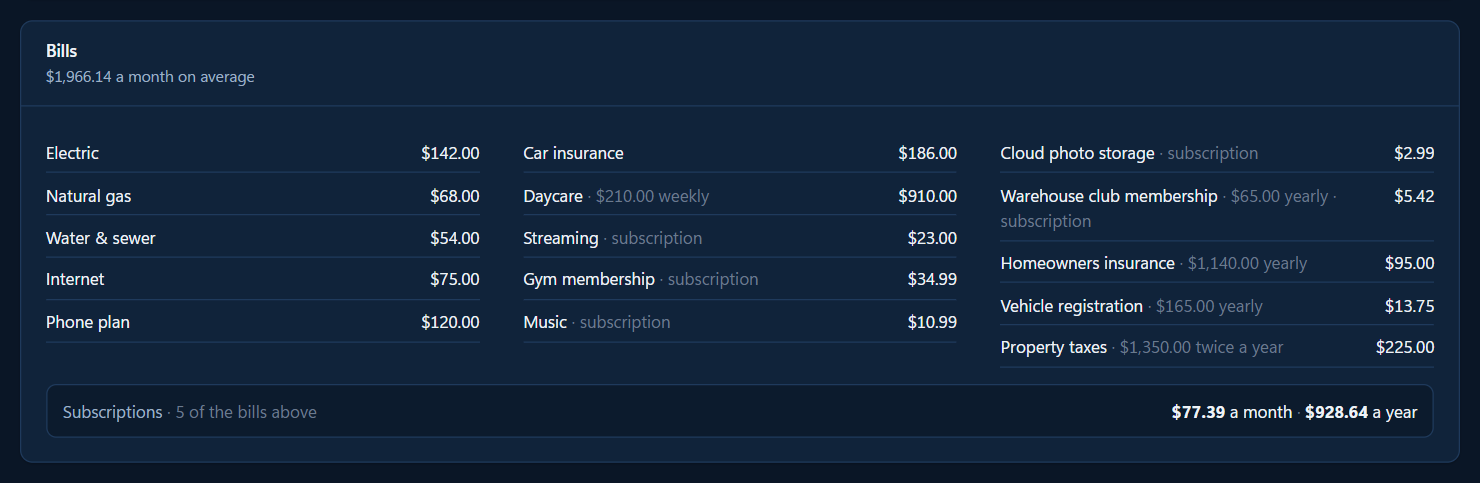
Open the Bills, Debts & Expenses tab and add each bill, loan, credit card or budgeted expense with its amount and due date. For debts, add the balance, interest rate and minimum payment, and IncomeSync estimates your payoff date and interest. Log payments as you make them.
Where do I see my household's whole picture?
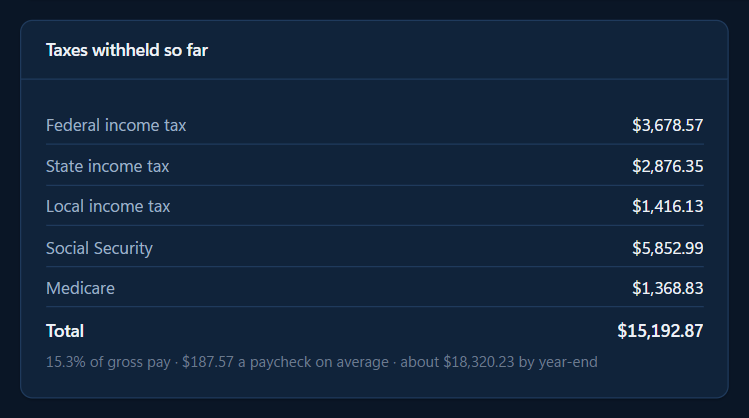
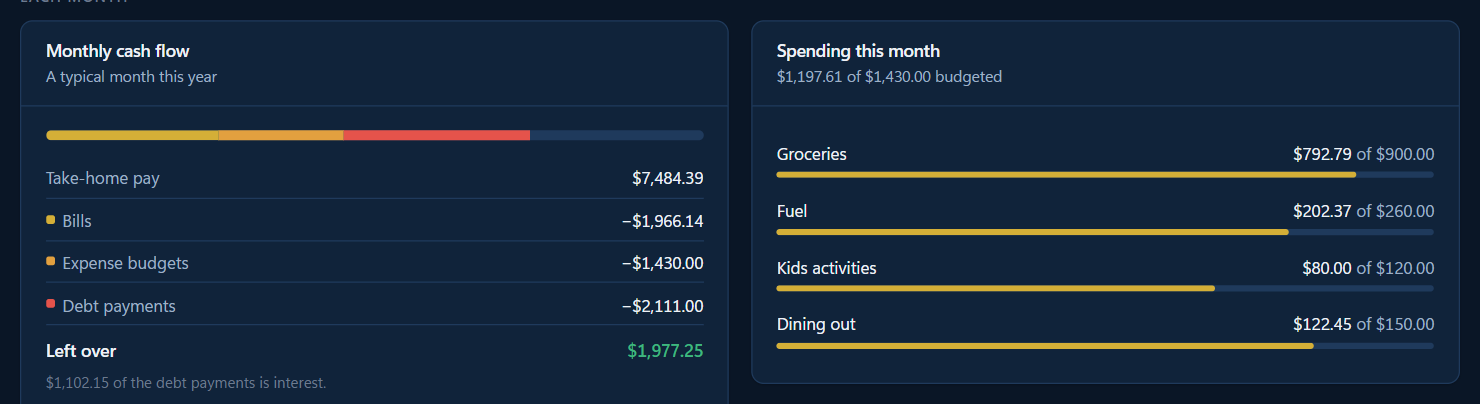
The Dashboard shows household gross and net income, what's going out, and what's left, plus a year-to-date summary that projects your totals to the end of the year.
How can IncomeSync help me pay off debt faster?
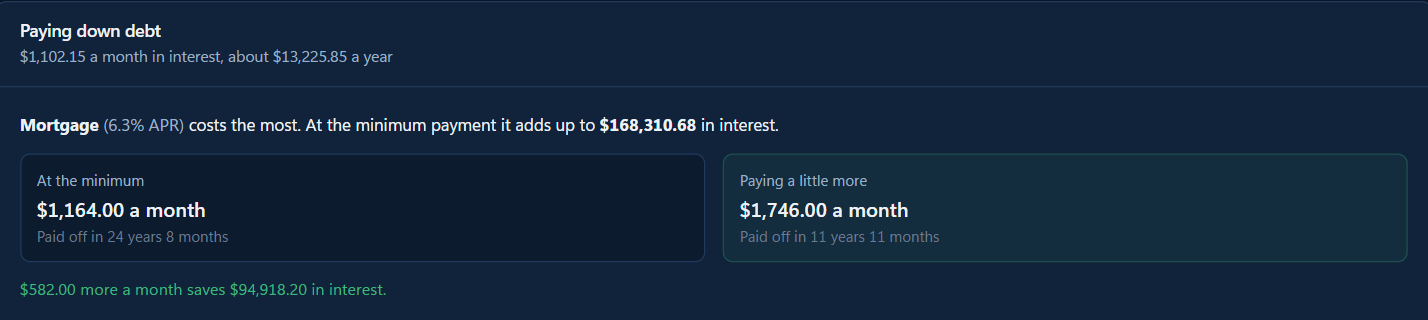
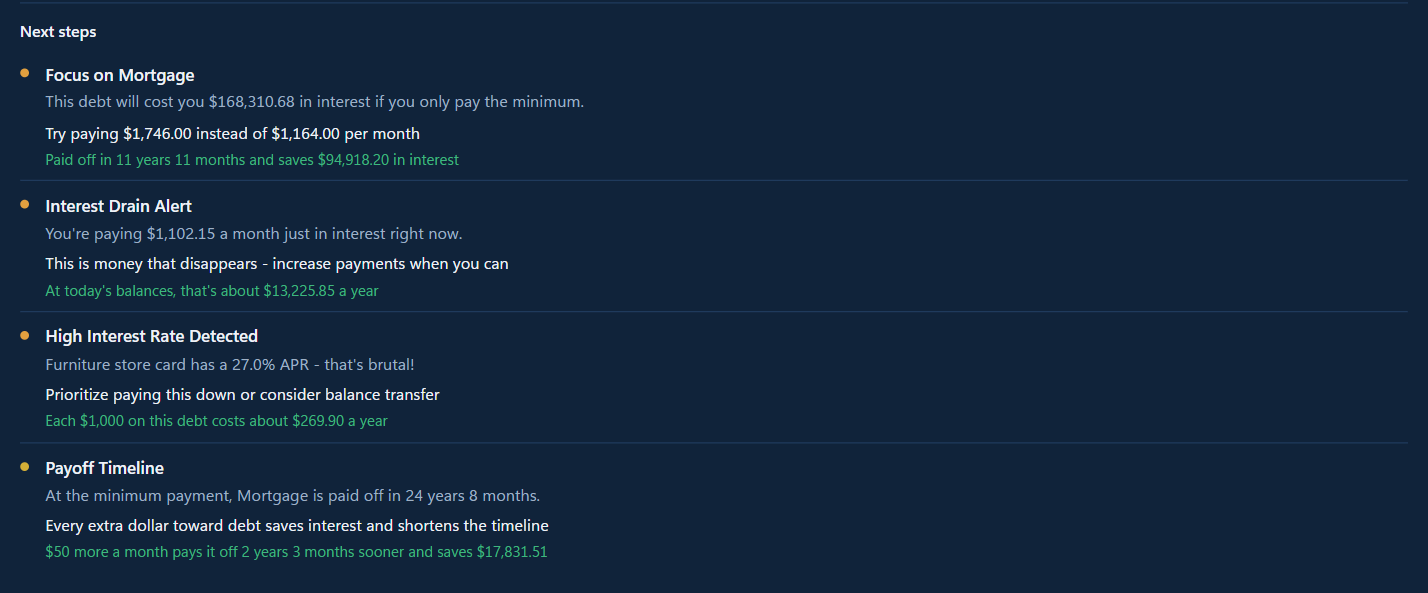
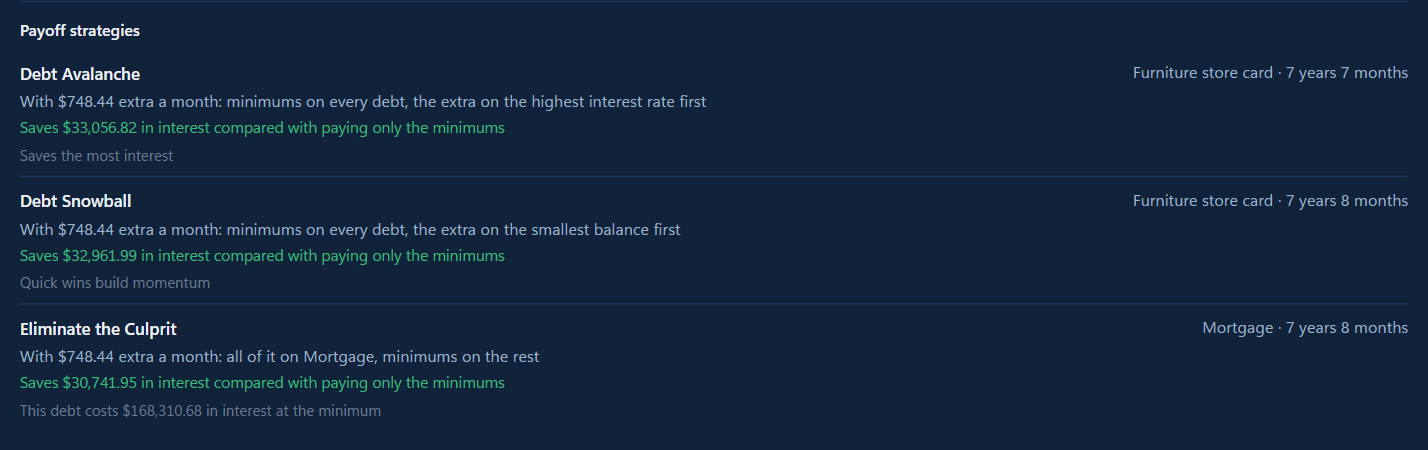
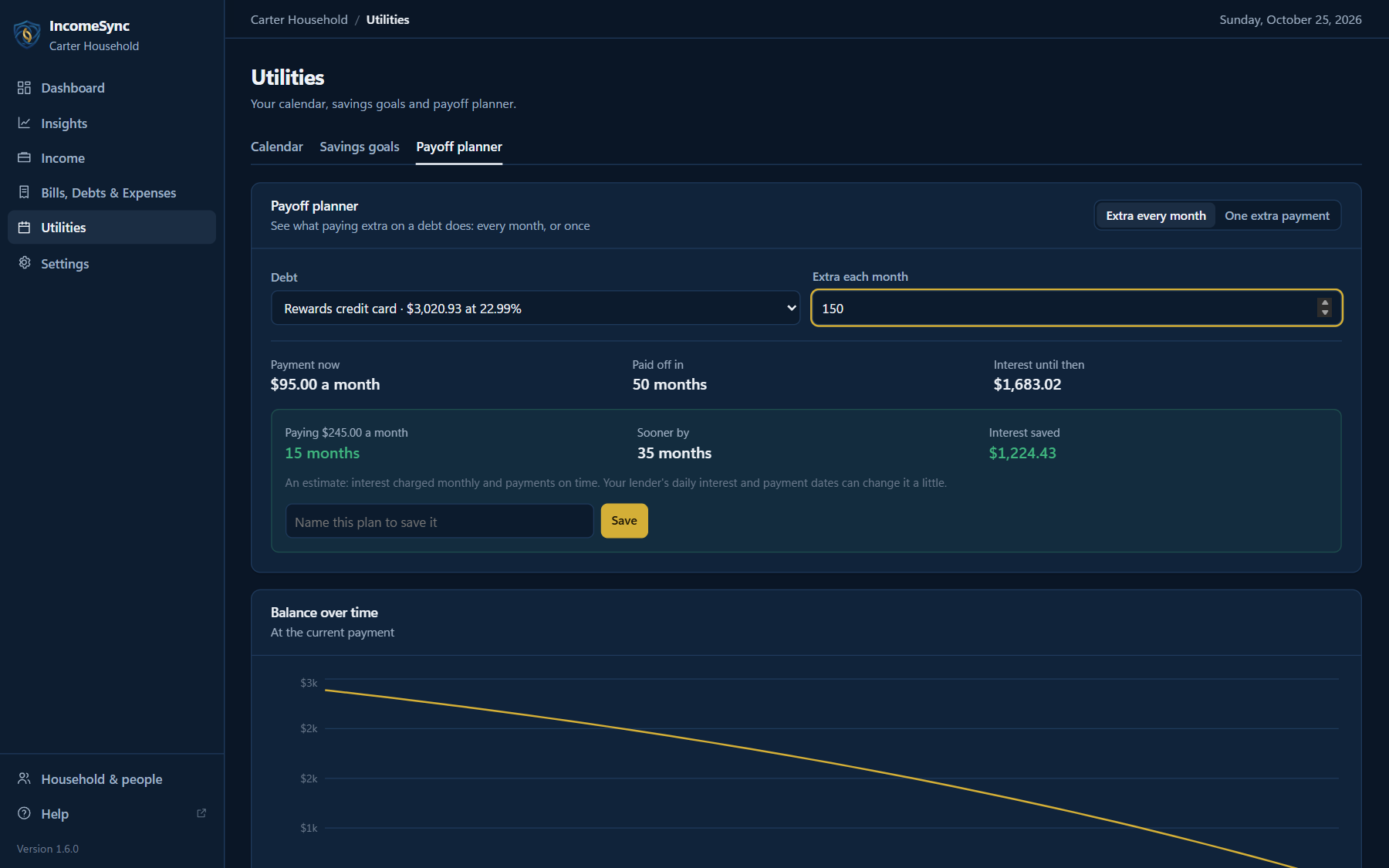
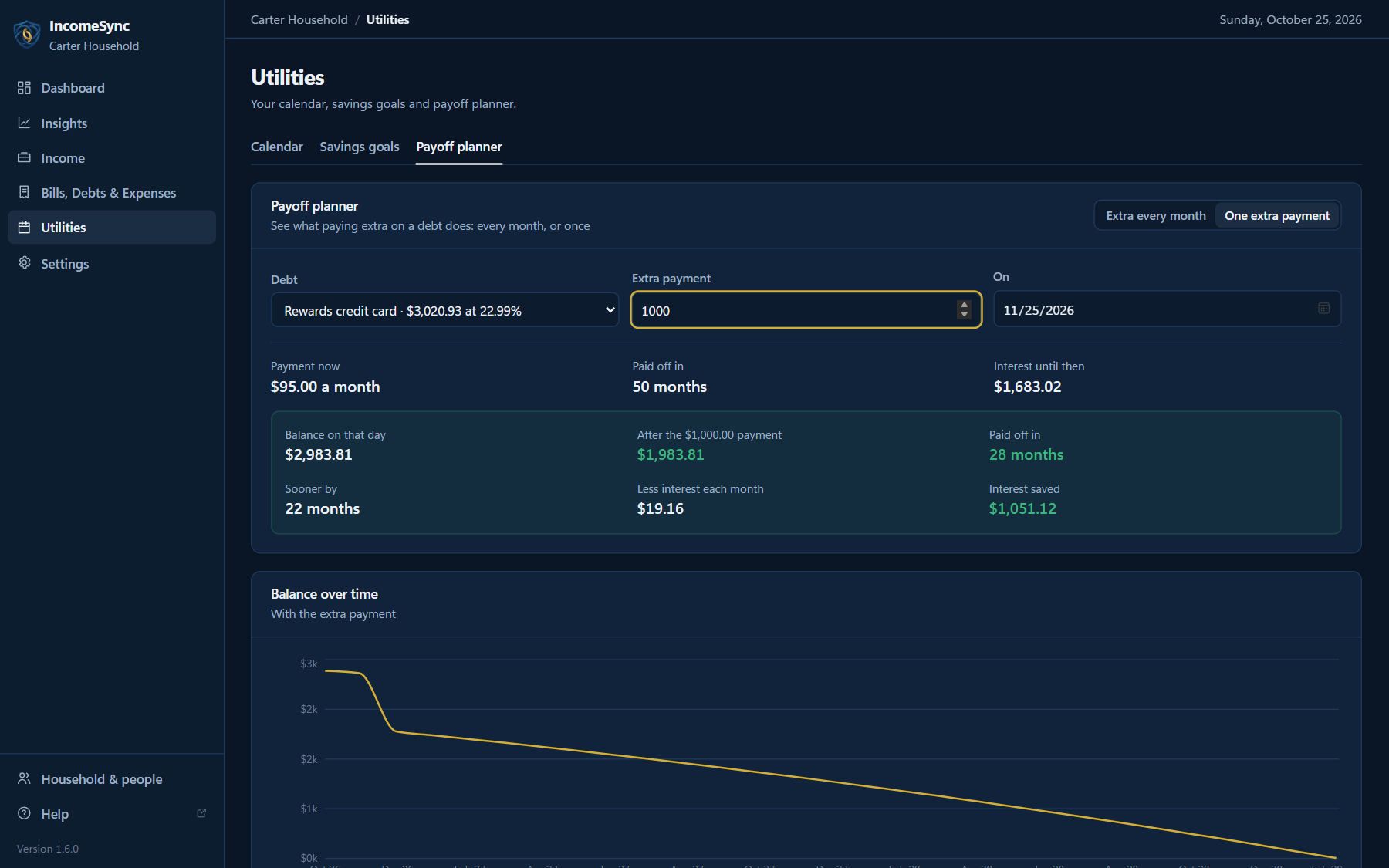
The Dashboard points out the debt costing you the most and compares payoff strategies (avalanche, snowball, and focusing on one debt). Under Utilities → Simulator, try an extra monthly payment or a one-time lump sum and see how much time and interest it saves.
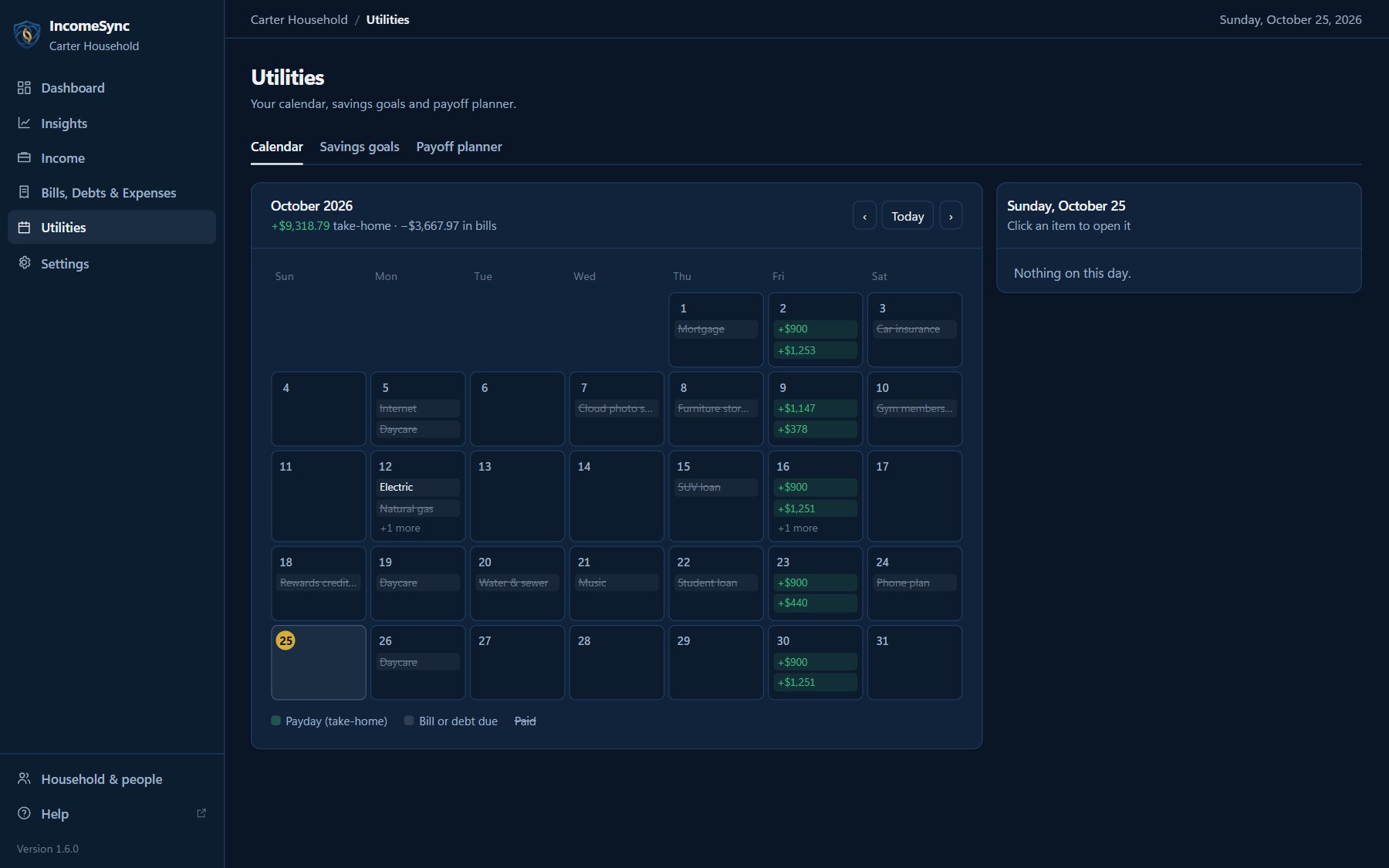
Can I see paydays and bills on a calendar?
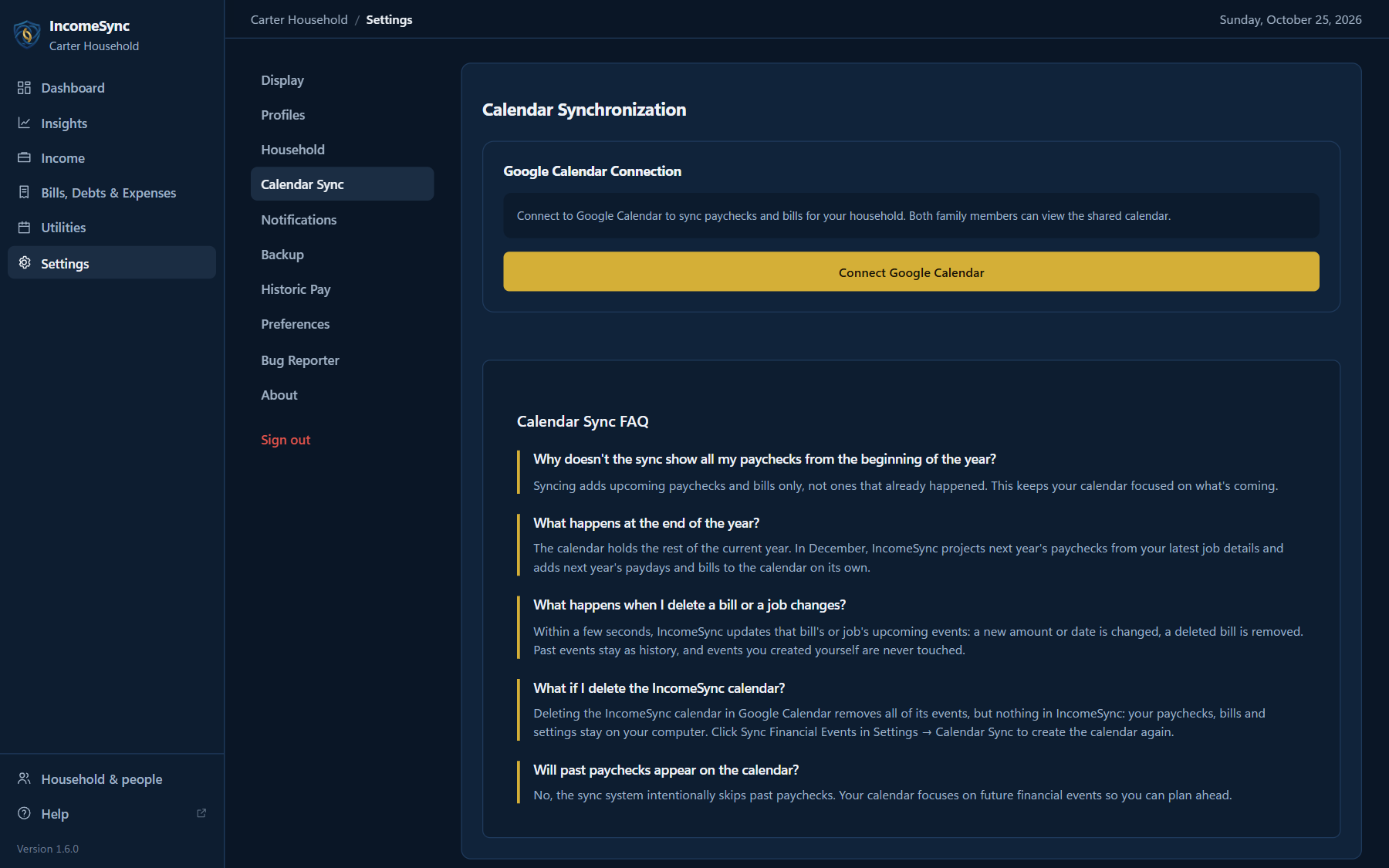
Yes. Utilities → Calendar shows paydays and due dates by month. If you'd like them on your phone too, Settings → Calendar Sync adds them to a separate "IncomeSync" calendar in your Google Calendar. IncomeSync can only see and change the calendar it creates, never your other calendars.
🔒 Security & Privacy
Where is my financial data stored?
Everything you enter in IncomeSync (your household, jobs, paychecks, bills and debts) is stored on your computer in an encrypted file and never uploaded to our servers. We only keep what's needed to sign you in and bill your subscription: your Google name, email and account ID, and your subscription status. See the Privacy Policy for the full list.
How do I back up my data?
IncomeSync saves an encrypted backup (AES-256-GCM) every time you close the app and keeps your last 10. You can also go to Settings → Backup and click Back up now, or restore any backup from the same screen.
What if I get a new computer?
Your data lives on your computer, so you bring it with you using a backup:
- On the old computer: Settings → Backup → Back up now, then Show recovery key, and copy the IncomeSync-Backups folder from your user folder.
- On the new computer: install IncomeSync, sign in, and put the folder in your user folder.
- Go to Settings → Backup → Import recovery key, then click Restore next to your most recent backup.
What happens to my data if I uninstall IncomeSync?
IncomeSync backs up every time you close it, so close the app (or click Settings → Backup → Back up now) before uninstalling. Uninstalling removes the app and its working data; your encrypted backups stay in the IncomeSync-Backups folder in your user folder, so if you reinstall, choose Restore my data (or Settings → Backup → Restore) to pick up where you left off.
To remove everything, also delete the IncomeSync-Backups and .incomesync folders from your user folder.
Does IncomeSync sell my data?
No. Your paycheck history, bills and household never leave your computer, so they can't be sold or used for advertising. Our website uses advertising cookies to measure our ads, and you can turn them off with Your Privacy Choices. The Privacy Policy lists the services we use, such as Google for sign-in, Stripe for payments and Meta for advertising.
💳 Subscription & Billing
How much does IncomeSync cost?
IncomeSync is free to use, with no account. The free version covers paychecks, withholding, bills, debts and budgets, for up to 2 households with one person each. Plus is $4.99 a month or $49.99 a year, plus any applicable sales tax, and adds your whole household together, Google Calendar sync, full Insights and saved what-ifs. See plans.
Do I need an account or a credit card?
No. The free version needs no account and no card. You only sign in, with Google or your email, if you get Plus, which you buy on our website; billing starts the day you subscribe.
Can I cancel anytime?
Yes. Sign in on your account page and choose Cancel Subscription. You keep access until the end of the period you've paid for, and within 14 days of a charge you can ask for a refund under our Refund Policy.
🆘 Support & Troubleshooting
How do I contact support?
Email support@incomesync.app or use the contact form. It helps to include:
- What you were doing and what happened
- Your app version (Settings → About)
- Screenshots, if you have them (hide any personal figures)
We reply within 24 to 48 hours. You can also send a report from inside the app with Settings → Bug Reporter.
The app closed unexpectedly. Is my data safe?
Your changes are saved as you make them, and IncomeSync makes an encrypted backup each time it closes normally. If something looks wrong after a crash, go to Settings → Backup and restore your most recent backup, then let us know what happened at support@incomesync.app.
My tax estimates don't match my pay stub. What should I check?
- Tax profile: filing status, state and dependents in Settings → Profiles
- Pay schedule: make sure it matches how often you're actually paid
- State taxes: some local or state taxes aren't included in the estimate
- Pay stubs: logging your real paychecks from their pay stubs helps calibrate future estimates
Still off? Email support@incomesync.app with the gross pay and the taxes withheld from one pay stub (leave out names and account numbers).
Can I import data from another app?
Not yet. For now you enter your household, jobs and bills yourself; setup usually takes 10 to 15 minutes. Email support@incomesync.app if you'd like help getting started.
Still have questions?
Email us at support@incomesync.app. We reply within 24 to 48 hours.